What is the Instruction Editor
The instruction editor is a tool for creating detailed descriptions of tasks and task groups in PayTask. With it, you can format text instructions, add links, images, and structure information for your workers.
Where is the Instruction Editor
The instruction editor is available in two places:
- When creating or editing a task group — the "ℹ️ Task Group Instruction" field on the tasks/group.php page
- When creating or editing a task — the "ℹ️ Task Instruction" field on the task.php page
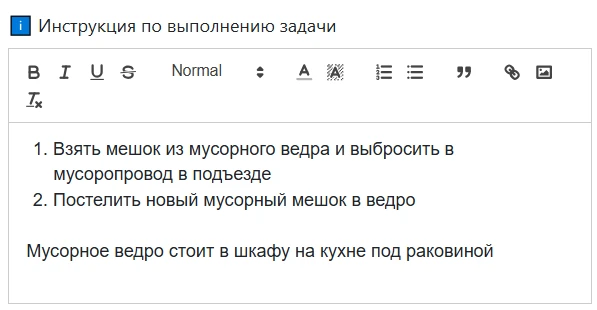
Formatting Capabilities
The instruction editor supports the following formatting tools:
Basic Text Formatting
- Bold text — to highlight important information
- Italic text — to emphasize individual words
- Underline — for additional emphasis
Strikethrough— to show outdated information
Content Structuring
- Headings — three heading levels (H1, H2, H3) for structuring the instruction
- Numbered lists — for step-by-step instructions
- Bulleted lists — for enumerations
- Blockquotes — to highlight important notes
Visual Styling
- Text color — selecting colors for text fragments
- Background color — highlighting text with a colored background
Media and Links
- Links — adding hyperlinks to external resources or internal pages
- Images — inserting images for clarity
How to Use the Editor
Creating an Instruction
- Open the task group or task editing page
- Find the "ℹ️ Task Group Instruction" field
- Enter the instruction text in the editor
- Use the toolbar to format the text
- Save your changes
Where Instructions are Displayed
Created instructions are displayed in the following places:
- On the task execution page — below the task or task group name
- In a modal window — when clicking the "ℹ️ Instruction" button next to a task or group
Workers can view instructions to understand task requirements and correctly calculate piece-rate wages.
Limitations
When working with the instruction editor, consider the following limitations:
- Maximum size — an instruction must not exceed the set byte limit (262,144 bytes)
- Text length — text without HTML tags must not exceed 5,000 characters
If limits are exceeded, the editor will show a warning, and saving will be impossible until corrected.
Tips for Writing Instructions
- Use headings to structure long instructions
- Apply numbered lists for step-by-step actions
- Highlight important information with bold text or colored background
- Add images to illustrate complex processes
- Include links to additional materials or resources
- Write concisely and specifically, avoiding unnecessary information
Usage Example
Example of a well-formatted instruction for a "Room Cleaning" task:
General Requirements
Before starting, make sure you have all the necessary tools.
- Check for cleaning supplies
- Prepare the equipment
- Put on your work uniform
Important
Note: pay special attention to corners and hard-to-reach areas.
This structure helps workers quickly understand requirements and perform tasks correctly, which is important for accurate time tracking and piece-rate wage calculation.