Task list — this is the main page for workers in PayTask, where all tasks that need to be completed on the selected date are displayed. Here you can view tasks, mark their completion, and track your earnings.
How to open the task list
After logging in, the task list opens automatically. If you are on another page, go to the "Tasks" section via the main menu or go to the address tasks/.
Selecting employer or employee
At the top of the page there is a dropdown list for selecting a user. If you are an employee and work with multiple employers, you can select the appropriate employer. If you are an employer and have multiple employees, you can select the appropriate employee. When you make a selection, the task list updates automatically, showing tasks only for the selected user.
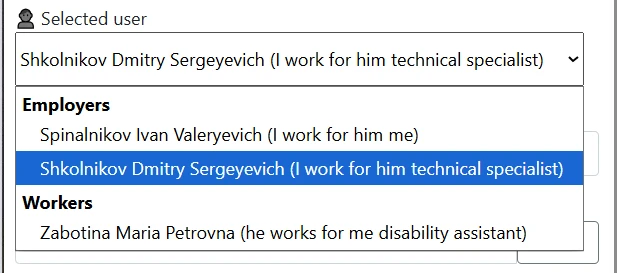
dropdown list for selecting employer or employee at the top of the page
Selecting execution date
Below the employer list there is a date selection field. By default, today's date is displayed. You can choose any other date to:
- View tasks for future days
- Check completed tasks for past days
- Mark task completion retroactively
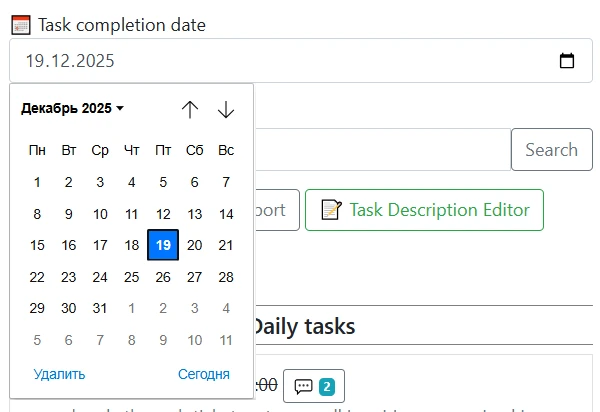
field for selecting task execution date
Task list structure
Tasks in the list are organized by groups. Each group contains:
- Group name — general description of the task type
- Task list — individual assignments within the group
Groups can be daily (repeat every day) or non-daily (executed according to a specific schedule).
Viewing task information
Each task in the list contains:
- Task name
- Payment for completion — fixed amount per execution
- Payment per minute — hourly rate (if applicable)
- Description and instructions — detailed information about the execution
Marking task completion
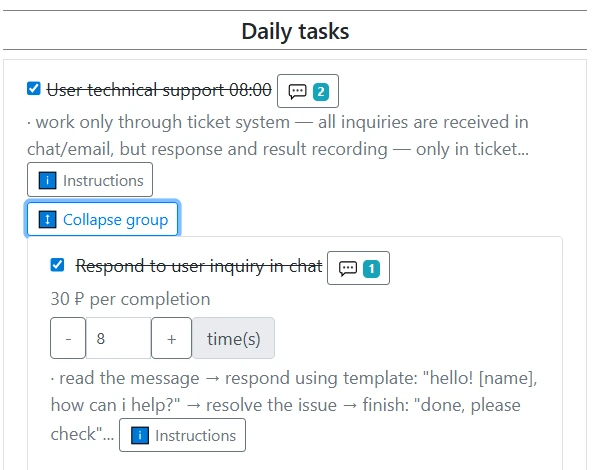
To mark a task as completed or remove the completion mark, click the task in the list. After marking, the task will be included in the calculation of your individual salary. Completed tasks are highlighted with checkmarks and strikethrough.
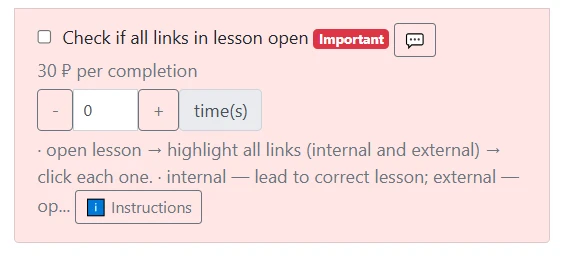
Important tasks
Tasks marked by the employer as important are displayed with special highlighting. Pay special attention to them — they may require priority execution.
Comments on tasks
If there are comments from the employer on a task or task group, they are displayed next to the corresponding element. Unread comments are highlighted with a light gray background.
Tips for working with the task list
- Regularly check the task list to not miss important assignments
- Mark task completion immediately after finishing them for accurate working time accounting
- Use task instructions for proper execution
- Check employer comments for additional information
The task list is your primary tool for working in PayTask. Proper use of this section ensures accurate task accounting and correct salary calculation.