Why Positions and Multipliers Are Needed
In PayTask, positions and multipliers define the rules used to calculate piecework wages, task accounting, and time tracking. They are fixed in the “employer–employee” relationship and affect salary calculations on both weekdays and weekends.
Multiplier — a coefficient applied to the task rate; weekend multiplier — a separate coefficient for Saturday and Sunday.
Where the Parameters Are Set
- New invitee: the pages/positionsnew.php page is opened from another user’s profile.
- Changing terms: the pages/positionsedit.php page is available from the lists on pages/employer.php and pages/worker.php.
- Status check: relationship details are visible in the user’s users/profile.php and in the “My Workers” or “My Employers” sections.
Creating an Invitation
- Open the person’s profile (users/usersearch.php).
- Click the invitation button: “📩 Invite to My Workers” or “📩 Invite to My Employers.”
- In the form, enter positions separated by commas and set two multipliers (weekdays and weekends). Allowed range: 0–100, position names up to 256 characters.
- Save — the request will appear in outgoing invitations on the appropriate role page.
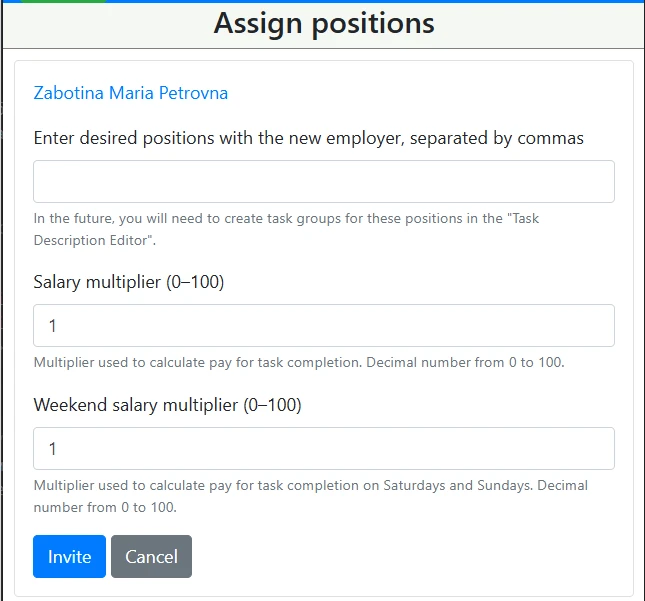
form for setting positions and multipliers when sending an invitation
Editing an Active Relationship
- Open the “My Workers” or “My Employers” section on the I as a Worker and I as an Employer pages.
- Click “✏️ Edit Positions and Multipliers” next to the relevant person — pages/positionsedit.php will open.
- Edit the list of positions, the wage multiplier, and the weekend multiplier, then save.
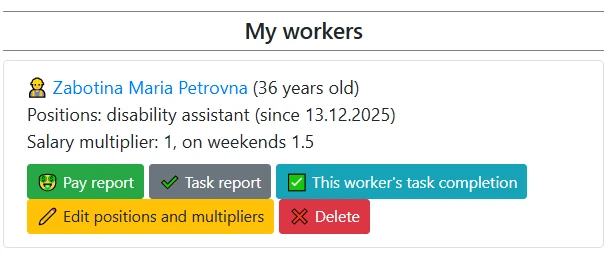
relationship card with the “Edit Positions and Multipliers” button
How This Affects Calculations
- Piecework wages for tasks are multiplied by the current coefficients; a separate multiplier is used on weekends.
- Reports: the “🤑 Salary Report” and “✔️ Task Report” buttons are available from the profile and role pages.
- Task routing: positions help plan task groups for a specific worker.
Control and Security
- Deleting an active employer or worker is prohibited in demo accounts.
- The profile shows who initiated the invitation and the current multipliers (weekdays and weekends).
- If an invitation is not accepted, it can be canceled or deleted in the outgoing/incoming lists.
Quick Setup Example
- The employer opens the candidate’s profile and invites them, setting the positions “courier, assembler” and multipliers of 1.2 (weekdays) and 1.5 (weekends).
- The candidate accepts the invitation on the “I as a Worker” page and then starts task tracking.
- When the rate changes, the employer opens “Change Positions and Multipliers,” adjusts the coefficients, and saves.
Tips for Working with Multipliers
- Agree on coefficients in advance — they directly affect salary calculations.
- Use different multipliers for weekends to accurately account for higher rates.
- After changing a multiplier, review the salary report to ensure the calculation is correct.